Addictive Drums 2 on Linux
I recently swapped my old Macbook for a new Lenovo Thinkpad and getting a decent setup for audio recording to work was more of a hassle than expected. Especially running unsupported VST plugins on Linux can be very hit-or-miss. This is a quick guide on how to run Addictive Drums 2 on Linux using yabridge.
Prerequisites
First make sure to install Wine for your distribution. I had luck using version 10.20.
Install Yabridge according to their instructions (at the time of writing this was version 5.1.1).
Installation
- Download the XLN Online Installer for Windows
- Run the downloaded executable with
WINEPREFIX=~/.wine/ad2 wine 'XLN Online Installer.exe'
This will create a fresh "Windows install" in ~.winead2 so it doesn't interfer with any other Wine programs.
- Install the VST plugin and the standalone program
- Try running the standalone Addictive Drums 2 application by running
WINEPREFIX=~/.wine/ad2/ wine ~/.wine/ad2/drive_c/Program\ Files/XLN\ Audio/Addictive\ Drums\ 2/Addictive\ Drums\ 2.exe
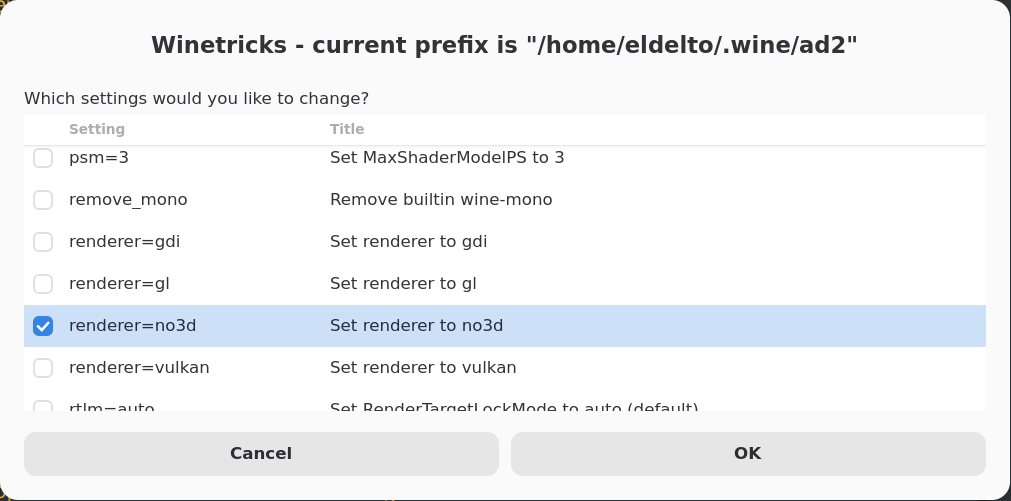
- If you get OpenGL errors run winetricks and change the renderer to no3d:
  WINEPREFIX=~/.wine/ad2 winetricks -q
  # Navigate to "Select the default wineprefix" > "Change Settings"
- If the standalone program is starting, you need to add the plugin to yabridge by running
  yabridgectl add ~/.wine/ad2/drive_c/Program\ Files/Common\ Files/VST3/
  yabridgectl sync
- Time to fire up your favourite DAW and try to load Addictive Drums there.
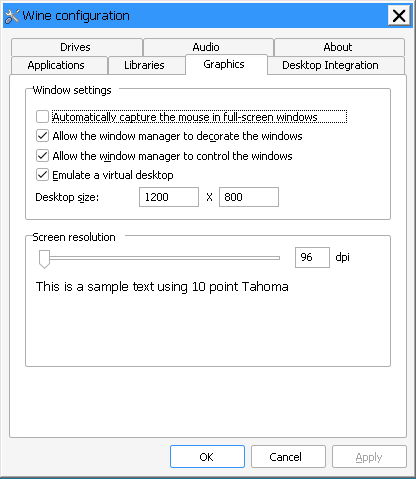
- If it runs but your cursor seems to be offset from where it is clicking in the plugin, run winecfg and enable desktop emulation:
WINEPREFIX=~/.wine/ad2 winecfg
- Success!
Hopefully this quick guide could help you (or future me) save a couple of hours fiddeling with different Wine/Yabridge settings.